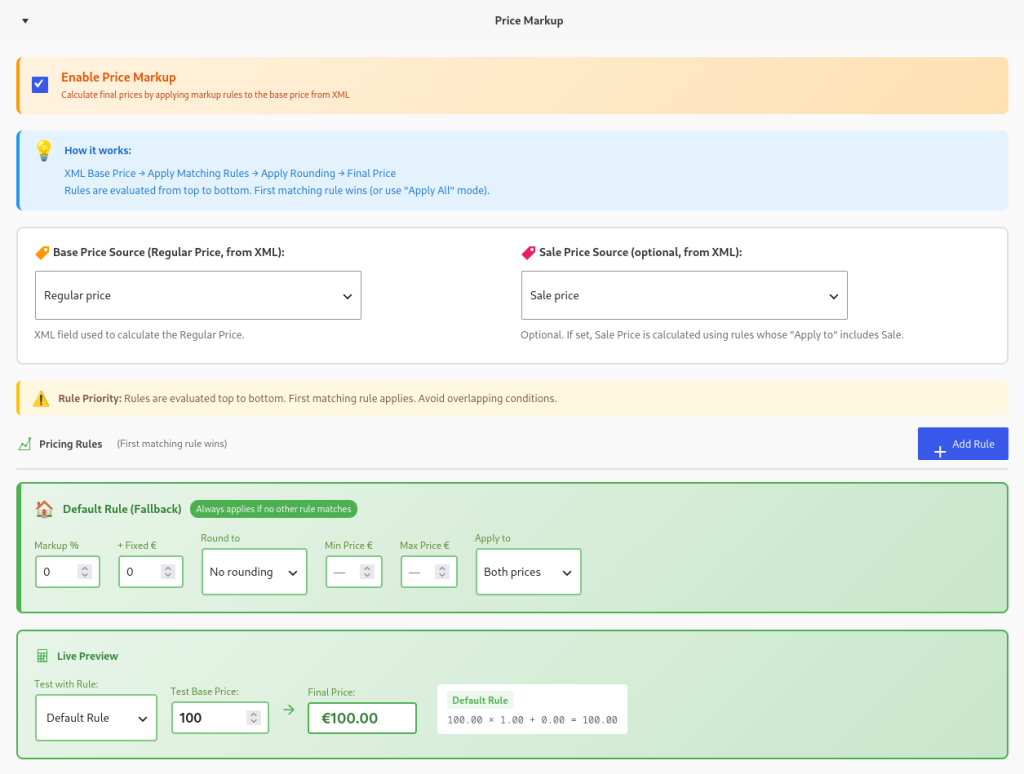
Calculating retail prices from supplier wholesale feeds is often one of the biggest challenges when importing into WooCommerce. With dynamic pricing rules, you can automatically add markup, apply VAT, and set psychological rounding (.99) without spreadsheet headaches.
—
The Problem
You’re importing 10,000 products from a supplier XML feed. The supplier gives you wholesale prices, but you need retail prices in your WooCommerce store.
Your store need:
– Add 40% markup
– Add 21% VAT
– Round to .99 (psychological pricing)
– Result: €76.99 (not €76.47352)
Your old solution:
1. Import products with wholesale prices
2. Go to Products → Bulk Edit
3. Select all → Calculate markup in Excel
4. Export CSV with new prices
5. Re-import to update prices
6. Time: 4-6 hours per import
7. Error rate: High (typos, formula mistakes, wrong categories)
Every. Single. Time. The feed updates.
There’s a better way.
New Solution: Price Markup Engine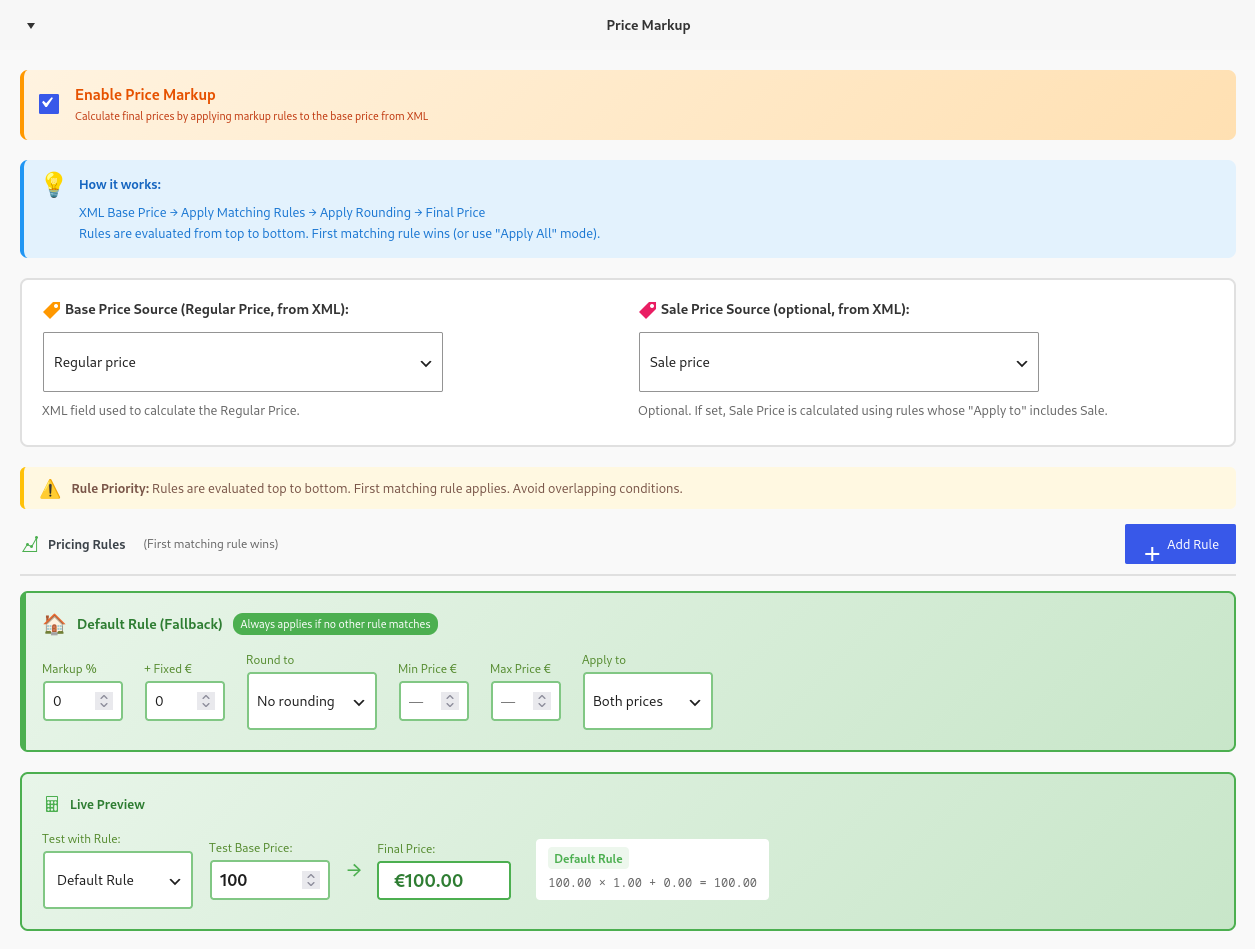
What if your products could have calculated prices applied during import—before they even hit your database?
With Bootflow Product Importer PRO’s Price Markup Engine, you can:
✅ Apply percentage markup + fixed fees FOR ANY CUSTOM CONDITION and/or COMBINATION
✅ Set category-specific pricing rules
✅ Apply different markups by weight, brand, price range or any csv/xml field or combinations
✅ Auto-round to *.01, *.10, *.50. *.0, *.99, *.95.
✅ Enforce minimum/maximum price limits
✅ Calculate both Regular AND Sale prices separately
Best part: Visual rules editor—no formulas, no code, no spreadsheets.
—
How It Works (3 Simple Steps)
Step 1: Enable Price Markup Engine
1. Upload your XML/CSV file
2. In Field Mapping step, scroll to “Price Markup” section
3. Check “Enable Price Markup“
4. Select Base Price Source and/or Sale Price from your CSV/XML field
Done. Markup engine is active.
—
Step 2: Set Up Default Markup Rule
Every product needs a fallback rule. This is your “default” pricing:
Example:
Base Price € 45.67 → +40% = €63.94 → Round to .99 = €63.99
—
Step 3: Add Conditional Rules
Want different markups for different products? Add conditional rules.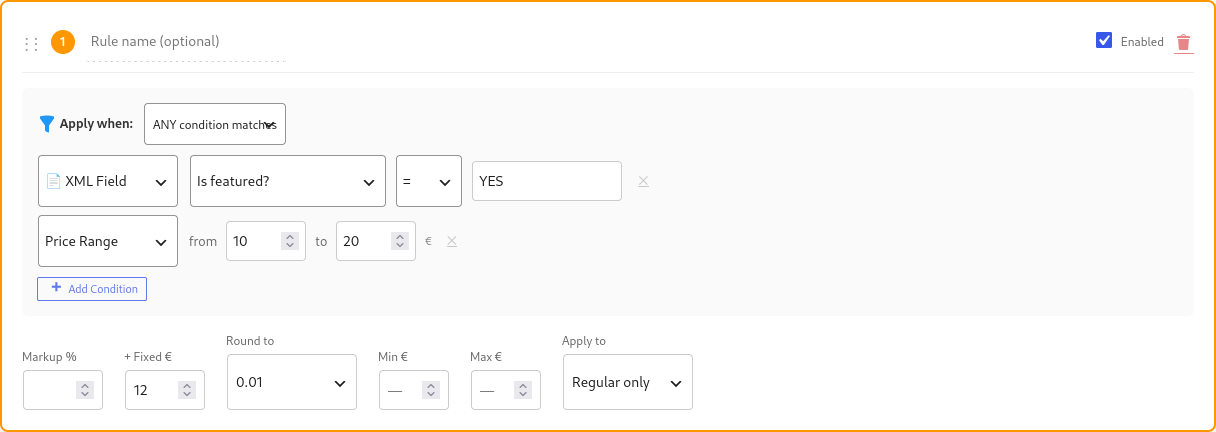
Rules are evaluated top to bottom. First match wins.
You can add as many as you want conditions for every price markup you think off.
Finish
Start import 🙂
Why This Beats Excel Formulas?
Traditional Approach (Excel Pre-Processing):
Step 1: Export supplier XML to CSV
Step 2: Add column: `=ROUND(B2*1.4, 2)` for 40% markup
Step 3: Copy formula down 10,000 rows
Step 4: Fix errors where formula broke
Step 5: Import modified CSV
Step 6: Realize you forgot VAT—start over
Time: 3-4 hours
Error rate: High
Maintenance: Repeat every import
Price Markup Engine Approach
Step 1: Configure rules once (15 minutes)
Step 2: Click “Start Import”
Step 3: Done
Time: 15 minutes first time, 0 minutes every import after, you can export price markup and other field conditions in file to use next time or in different import.
Error rate: Zero (rules are validated before import)
Maintenance: None (rules save with import template)
—
Pro Tips: Advanced Pricing Strategies
Tip 1: Psychological Pricing by Price Range
Different price points respond to different rounding:
– Budget (€0-20): Round to .95 (€19.95 feels cheaper than €20.00)
-Mid-range (€20-100): Round to .99 (€49.99 standard)
-Premium (€100+): Round to .00 (€299.00 feels more premium than €299.99)
Tip 2: Minimum Margin Protection
Prevent selling below cost:
Rule:
– Markup %: 35%
– Min Price €:`1.5 × {base_price}` (ensures 50% minimum margin even after markup)
Example:
– Base: €10.00
– +35% = €13.50
– Min Price €15.00 enforced
– Result: €15.00 (protected from losses)
Tip 3: Seasonal Clearance Pricing
Use Sale Price Source from XML with lower markup:
Regular Price Rule:
– Markup: 10%
– Round: .No round up
Sale Price Rule:
– Markup: 20% (near-cost clearance)
– Round: .95
—
Common Mistakes to Avoid
❌ Mistake 1: Overlapping Conditions
Problem:
– Rule 1: Category = “Clothing” → 40% markup
– Rule 2: Weight > 2kg → 50% markup
– What happens? A 3kg jacket matches BOTH rules
Solution:
Rules evaluate top-to-bottom. First match wins.
Put specific rules first, generic rules last.
Correct order:
1. Rule: Category = “Clothing” AND Weight > 2kg → 50%
2. Rule: Category = “Clothing” → 40%
3. Rule: Default → 35%
❌ Mistake 2: Forgetting to Set Base Price Source
If you enable Price Markup Engine but don’t select Base Price Source, the engine can’t calculate anything.
Check:
Base Price Source = “ or your XML price field
❌ Mistake 3: Expecting Markup on Already-Marked-Up Prices
If your supplier XML already includes retail prices, don’t apply markup again!
Solution:
Either:
1. Map “ directly to `Regular Price` (no markup)
2. OR ask supplier for wholesale feed
—
Technical Details: How Markup is Applied
For transparency, here’s the exact calculation order:
1. Load Base Price from XML field
Example: €45.67
2. Apply Matching Rule
First matching rule (top to bottom)
Example: Category = “Leather” → 40% markup + €0 fixed
3. Calculate Markup
(Base × (1 + Markup% / 100)) + Fixed €
(45.67 × 1.40) + 0 = €63.938
4. Apply Rounding
Round to .99 = €63.99
5. Enforce Min/Max Limits
Min €9.99, Max none → Pass
Final: €63.99
6. Save to WooCommerce
Regular Price = €63.99
This happens for EVERY product, automatically, during import.
No manual calculations. No spreadsheets. No errors.
—
Use Cases: Who Benefits from Price Markup Engine?
Dropshipping Stores
– Import supplier feeds with wholesale prices
– Apply automatic markup per category
– Update prices daily without manual work
Multi-Supplier Stores
– Different markup rules per brand/supplier
– Category-specific pricing strategies
– Automatic margin protection
International Stores
– Base price in USD, convert to EUR with markup
– Add VAT automatically
– Regional pricing rules
Clearance & Sale Automation
– Regular price: 50% markup
– Sale price: 20% markup (automatic discount)
– Seasonal pricing without manual edits
—
Want to see it in action?
1. Try Bootflow Product Importer Free for ever WordPress plugin link
2. Upload a sample XML/CSV file
3. Configure one rule
4. Import 10 products and check prices
OR try Bootflow – Product XML & CSV Importer PRO DEMO here
After demo you can get PRO here
—
FAQ
Q: Can I use markup rules AND manual price mapping?
A: Yes! If you map `Regular Price` field manually, it overrides the markup engine. Use markup for calculated prices, or manual mapping for direct price import.
Q: Does this work for variable products?
A: Yes! Markup applies to parent products and variations. Each variation can have different prices calculated from their individual base prices.
Q: Can I test markup before importing 10,000 products?
A: Absolutely. Use “Test Mapping” button to preview calculated prices for first 5 products before starting full import.
Q: What if I make a mistake in rules?
A: Rules are saved with import template. Edit template → update rules → re-run import. Products update with new prices.
Q: Can I use XML field values in conditions?
A: Yes! Advanced conditions support:
– Category (from XML)
– Brand (from XML)
– Any custom XML field (e.g., “, “)
– Weight, Price, SKU patterns
—
Tags: WooCommerce pricing automation, bulk price markup, XML import pricing, dynamic pricing rules, wholesale to retail conversion, WooCommerce importer
Related Guides & Tutorials
- How to Automatically Map Product Categories During WooCommerce Import (With Hierarchy Preservation)
- How to Sync WooCommerce Stock Levels from Supplier Feed (Without Re-Importing Everything)
- How to Automatically Assign Shipping Classes When Importing Products in WooCommerce
- How to Auto-Translate WooCommerce Products in 30 Minutes
- How to Bulk Translate and Format WooCommerce Products Using AI & PHP Formulas
- Why a Self-Hosted WooCommerce AI Chatbot Is the Safest Choice for Your Store