How to Sync WooCommerce Stock Levels from Supplier Feed (Without Re-Importing Everything)
Reading time: 6 minutes
Difficulty: Beginner
Time to implement: 10 minutes
—
The Problem
You run a dropshipping or wholesale store. Your supplier sends you daily stock updates via XML/CSV feed.
Supplier feed (10,000 products):
SKU,Stock,Price
PROD-001,45,29.99
PROD-002,0,15.50
PROD-003,120,89.00
... (9,997 more rows)
What you need:
- Update stock levels for all 10,000 products
- Update prices if changed
- DO NOT touch descriptions, images, categories, attributes
- Run automatically every night
Wrong approach: Re-import everything
- Upload full product feed
- Import all fields (name, description, images, categories, etc.)
- Time: 2-3 hours
- Database stress: High (re-writing 50+ meta fields per product)
- Risk: Overwriting custom data (reviews, sales history)
- Result: Store slow, database bloated ❌
Right approach: Selective Stock + Price Update
- Import only SKU + Stock + Price
- Time: 5-10 minutes
- Database stress: Minimal (2-3 fields updated)
- Risk: Zero (other fields untouched)
- Result: Fast, clean, efficient ✅
There’s a better way to do this.
—
The Solution: Selective Field Updates
What if you could update only stock and price fields—without touching anything else?
With Bootflow Product Importer PRO’s Selective Updates, you can:
✅ Update ONLY stock levels (leave everything else unchanged)
✅ Update ONLY prices (skip descriptions, images, etc.)
✅ Update stock + price together (most common)
✅ Skip products with unchanged data (10x faster)
✅ Schedule automatic daily/hourly updates
✅ Handle 10,000+ products in minutes
Best part: One-click configuration—no custom code, no manual exports.
—
How It Works (3 Simple Steps)
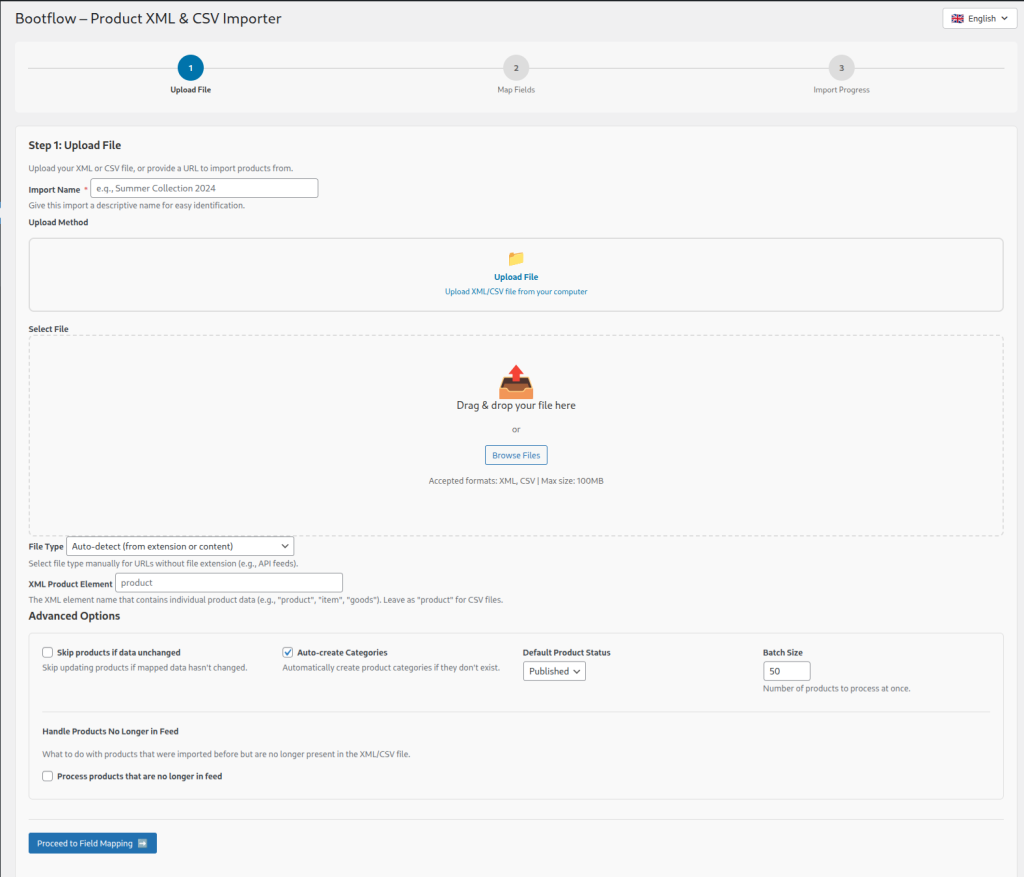
Step 1: Upload Stock Feed
- Go to Bootflow Importer → New Import
- Upload supplier CSV/XML or enter Remote URL
- Click Next
Example CSV (minimal):
SKU,Stock Quantity
PROD-001,45
PROD-002,0
PROD-003,120
Only 2 columns needed!
—
Step 2: Map ONLY Stock Fields
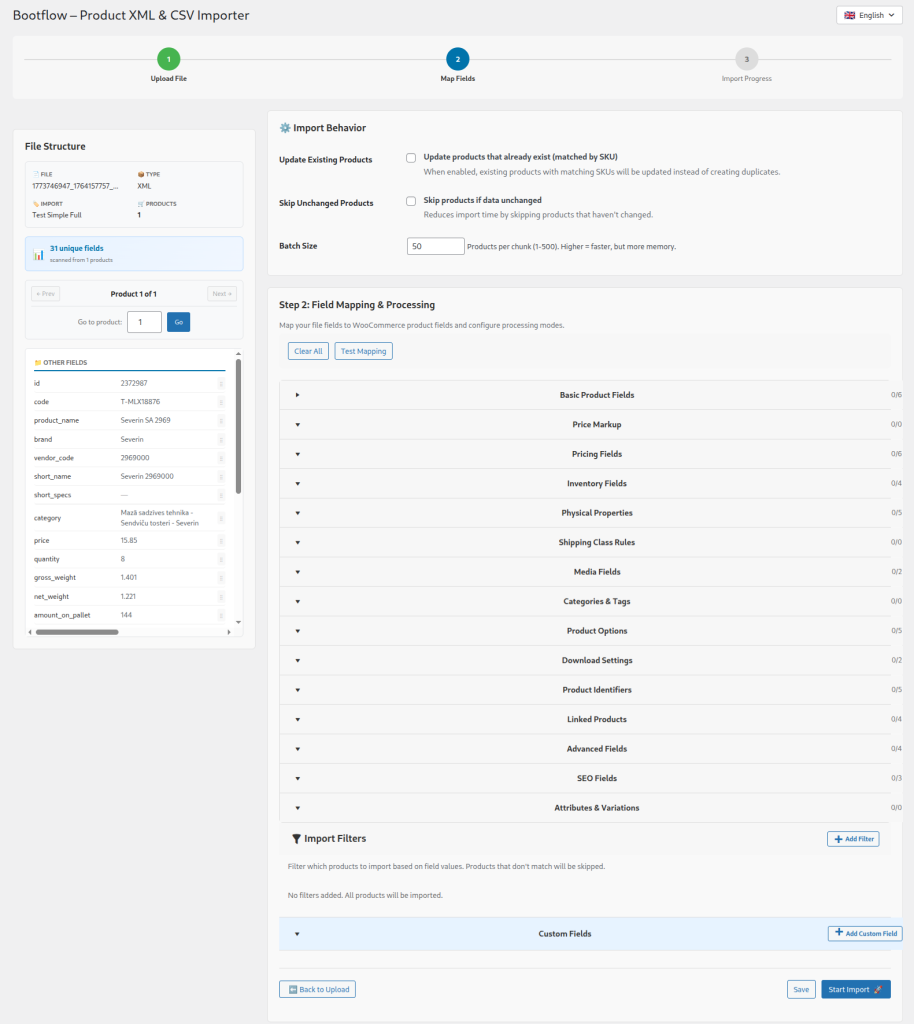
In Field Mapping step:
- Map SKU → SKU (required for matching)
- Map Stock Quantity → Stock Quantity
- Leave all other fields empty (don’t map Product Name, Description, etc.)
Critical setting:
Enable ✅ “Update Existing Products”
This tells plugin to FIND products by SKU and UPDATE them (not create duplicates).
—

Step 3: Run Import
Click “Start Import”.
What happens:
For each row:
- Find product by SKU (e.g., PROD-001)
- Update ONLY Stock Quantity = 45
- Leave Name, Description, Images, Categories untouched
- Move to next row
Result:
- 10,000 stock levels updated ✅
- Time: 5-10 minutes
- Everything else preserved ✅
—
Advanced: Stock + Price + Status Updates
Most suppliers send stock AND price in same feed. Update both together:
Supplier CSV:
SKU,Stock,Price,Stock Status
PROD-001,45,29.99,instock
PROD-002,0,15.50,outofstock
PROD-003,120,89.00,instock
Mapping:
- SKU → SKU
- Stock → Stock Quantity
- Price → Regular Price
- Stock Status → Stock Status
Import result:
- Stock updated ✅
- Price updated ✅
- Stock status updated ✅
- Descriptions/images/categories untouched ✅
—
Pro Feature: Skip Unchanged Products
Problem:
Out of 10,000 products in feed:
- 9,500 have same stock as yesterday
- 500 actually changed
Without optimization:
- Plugin updates ALL 10,000 products
- Time: 2-4 hours
With “Skip- Unchanged”:
Enable ✅ “Skip Unchanged Products”
Plugin:
- Loads product from database
- Compares new stock vs. current stock
- If identical → skip (0.1 second)
- If different → update (2 seconds)
Time: 5-30 minutes (depends on servers, size of import) ✅
How to enable:
In Import Settings:
- Check ✅ “Skip products if data unchanged”
—
Real-World Scenario: Dropshipping Store
Setup:
- 8,000 products
- Supplier sends stock feed every 6 hours
- Need automatic updates
Import Configuration (5 minutes):
Step 1: File Source
- Remote URL
- Schedule: Every 6 hours
Step 2: Field Mapping
- SKU → SKU
- Stock → Stock Quantity
- Price → Regular Price
Step 3: Import Settings
- ✅ Update Existing Products
- ✅ Skip Unchanged Products
- ✅ Schedule: Every 6 hours (Action Scheduler)
Step 4: Save Template
- Name: “Supplier Stock Sync”
Done!
From now on:
- Every 6 hours: Feed auto-downloads
- Stock + Price update: Automatic
- Time per update: 2-3 minutes
- Manual work: ZERO ✅
—
Advanced: Stock Status Rules
Sometimes supplier feed doesn’t include “Stock Status” field. You can auto-calculate it:
Use PHP formula:
Field: Stock Status
Formula:
php
{stock_quantity} > 0 ? 'instock' : 'outofstock'Result:
- If Stock Quantity > 0 → Status = “In Stock”
- If Stock Quantity = 0 → Status = “Out of Stock”
No supplier coding needed.
—
Handling Backorders
Supplier sends:
SKU,Stock,Backorder
PROD-001,0,yes
PROD-002,50,no
Map:
- Stock → Stock Quantity
- Backorder → Allow Backorders
Values:
- yes → Allow backorders
- no → Do not allow
- notify → Allow, but notify customer
Result:
- PROD-001: Stock = 0, but customers can still order (backorder)
- PROD-002: Stock = 50, normal behavior
—
Common Mistakes to Avoid
❌ Mistake 1: Not Enabling “Update Existing Products”
If disabled:
- Plugin tries to CREATE new products
- SKUs already exist → import fails ❌
Fix:
Always enable ✅ “Update Existing Products” for stock sync.
—
❌ Mistake 2: Mapping Too Many Fields
Problem:
You map:
- SKU
- Stock
- Price
- Product Name ← unnecessary
- Description ← unnecessary
- Images ← unnecessary
Result:
- Plugin updates ALL these fields
- Overwrites custom descriptions you edited manually ❌
Fix:
Map ONLY fields you want to update (usually just SKU + Stock + Price).
—
❌ Mistake 3: Wrong SKU in Feed
Supplier CSV:
SKU,Stock
PROD-001-WRONG,50
Your WooCommerce SKU: PROD-001
Result:
- Plugin can’t find product (SKU mismatch)
- Update fails ❌
Fix:
Use SKU normalization formula:
php
str_replace('-WRONG', '', {sku})Result: PROD-001 (matches WooCommerce)
—
❌ Mistake 4: Forgetting to Enable Stock Management
Per product, WooCommerce needs:
“Manage Stock” = Yes
If disabled:
- Stock Quantity field is ignored
- Product always shows “In Stock” ❌
Fix:
Map field Manage Stock → Value: 1 (true)
—
Technical Details: How Selective Updates Work
For transparency, here’s what happens during stock sync:
1. Load Product by SKU
   SQL: SELECT ID FROM wp_posts WHERE post_type='product' AND sku='PROD-001'
   Found: Product ID 12345

2. Get Current Stock
   Current: Stock = 40

3. Compare New vs. Current
   New: Stock = 45
   Difference: +5 (changed!)

4. Update ONLY Stock
   SQL: UPDATE wp_postmeta SET meta_value='45' WHERE post_id=12345 AND meta_key='_stock'

5. Trigger WooCommerce Stock Hook
   WooCommerce updates stock status automatically
   If stock > 0 → Status = "instock"
   If stock = 0 → Status = "outofstock"

6. Clear Cache
   WooCommerce + LiteSpeed/W3TC cache cleared for product page

7. Skip Other Fields
   Name, Description, Images, Categories → NOT TOUCHED
This happens in ~0.5 seconds per product.
For 10,000 products = ~80 minutes (if all changed)
With “Skip Unchanged” = ~5 minutes (if only 500 changed)
—
Use Cases: Who Benefits from Stock Sync?
Dropshipping Stores
- Supplier stock changes hourly
- Must keep WooCommerce in sync
- Automatic import every hour
Wholesale Distributors
- 50,000+ SKU catalog
- Stock feed updates daily
- Only 2-3% of products change per day
- “Skip Unchanged” makes it feasible
Multi-Warehouse Stores
- Combine stock from 3 warehouses
- Feed 1: Warehouse A stock
- Feed 2: Warehouse B stock
- Feed 3: Warehouse C stock
- Import each, sum stock levels
Marketplace Sellers
- Sell on WooCommerce + Amazon + eBay
- Central stock management system sends feed
- Update all platforms from one source
—
Advanced: Multi-Field Selective Updates
You can be even more selective:
Scenario:
Update stock for ALL products, but prices ONLY for category “Electronics”
Setup:
Import 1: Stock Sync (All Products)
- Map: SKU → Stock Quantity
- Filter: None (all products)
- Schedule: Every hour
Import 2: Price Sync (Electronics Only)
- Map: SKU → Regular Price
- Filter: Category = “Electronics”
- Schedule: Daily
Result:
- Stock updates every hour ✅
- Prices update daily, only Electronics ✅
- Other categories’ prices unchanged ✅
—
Next Steps
Want to test stock sync?
Simply head over to the menu and select ‘DEMO importer’ to get started.
No data will be saved and will be permanently deleted
—
FAQ
Q: Can I update ONLY out-of-stock products?
A: Yes! Use Import Filters:
Condition: Stock Quantity = 0
Action: Update only those products
Q: Can I sync stock from multiple suppliers?
A: Yes! Create separate import templates:
- Supplier A stock sync (runs hourly)
- Supplier B stock sync (runs daily)
Each updates different SKUs
Q: What if supplier SKUs don’t match mine?
A: Use SKU mapping table or PHP formula to normalize SKUs before matching.
Q: Can I update stock for variable products?
A: Yes! Each variation has its own SKU. Update variation stock by mapping variation SKU → Stock Quantity.
Q: Does stock sync trigger “Back in Stock” notifications?
A: Yes, if you use a plugin like “WooCommerce Waitlist”. Stock changes trigger WooCommerce hooks, which those plugins listen to.
Q: Can I schedule stock sync to run at specific times?
A: Yes! Use WP-Cron scheduling:
- Every 15 minutes
- Hourly
- Daily at 3 AM
- Weekly on Mondays
Q: What happens if import fails mid-way?
A: Plugin uses ActionScheduler background processing. If it fails, it automatically retries. You can resume from where it stopped.
—
Tags: WooCommerce stock sync, automatic inventory update, CSV stock import, selective product update, dropshipping automation
Related Guides & Tutorials
- How to Automatically Map Product Categories During WooCommerce Import (With Hierarchy Preservation)
- How to Automatically Calculate WooCommerce Product Prices During Import (Markup, VAT, Rounding)
- How to Automatically Assign Shipping Classes When Importing Products in WooCommerce
- How to Auto-Translate WooCommerce Products in 30 Minutes
- How to Bulk Translate and Format WooCommerce Products Using AI & PHP Formulas
- Why a Self-Hosted WooCommerce AI Chatbot Is the Safest Choice for Your Store