
Reading time: 7 minutes
Difficulty: Beginner to Intermediate
Time to implement: 5–10 minutes
—
The Problem: Supplier Feeds Ruin Your Store’s Category Menu
You’re importing 5,000—or even 300,000—products from a supplier XML or CSV feed. Your WooCommerce store has a clean, carefully designed navigation menu with 4 main top-level categories and 100+ neatly organized subcategories.
Supplier XML:
<item>
  <name>Wireless Headphones Sony WH-1000XM5</name>
  <category_full>Audio</category_full>
</item>
<item>
  <name>Automatic Pet Feeder 4L</name>
  <category_full>Zoo</category_full>
</item>
<item>
  <name>Phone Screen Repair Service</name>
  <category_full>Service</category_full>
</item>
Your WooCommerce Store Structure:
Computers & Electronics
  ├─ Laptops
  ├─ Audio Equipment
  └─ Computer Components
Home & Garden
  ├─ Smart Home
  └─ Kitchen Appliances
Auto, Sports & Travel
  ├─ Smart Watches
  └─ Pet Supplies (ZOO)
The challenge:
– Supplier uses flat or mismatched names (Audio, Zoo, Service, Misc)
– You need products placed inside your exact subcategories (Computers & Electronics > Audio Equipment, Auto, Sports & Travel > Pet Supplies (ZOO))
– Standard import result: 27 random categories created at the top level of your store menu, duplicate categories, and broken navigation
Manual approach:
1. Import products into messy auto-created categories
2. Go through thousands of products or categories manually
3. Move products into the right subcategories and delete duplicates
4. Repeat every time a new category appears in the supplier feed
There’s a much better way.
The Solution: Intelligent Category Mapping in Bootflow Product Importer PRO
What if you could scan every category in your supplier’s XML/CSV file in under a second, map them to your existing WooCommerce subcategories using a searchable dropdown, lock down your top-level menu, and selectively create new subcategories under any parent category?
With Bootflow Product Importer PRO, you can:
✅ One-Click Feed Category Scanner: Streams even 150MB+ XML/CSV files (300,000+ products) in under 1 second and extracts every unique supplier category with its exact product count
✅ Pre-Populated Feed Dropdown: Pick supplier categories directly from a dropdown (or load all of them into the mapping table with one click)—no guessing or copy-pasting from raw XML files
✅ Searchable WooCommerce Category Selector: Instantly filter across 100+ store categories with accent/diacritic-insensitive search (🔍 Search category...)
✅ Top-Level Category Protection: Turn off global auto-creation so unmapped feed categories never pollute your main store menu
✅ + Create New with ↳ Parent Selection: Create specific missing categories on the fly and choose the exact Parent category they should live under
✅ Direct, PHP Formula, AI & Hybrid Modes: Clean up, translate, or restructure category values during import
✅ Automatic Category Thumbnails: Automatically sets the first imported product’s image as the thumbnail for newly created categories
—
How It Works (5 Simple Steps)
Step 1: Select Your Category Source Field
In Step 2 (Field Mapping), open the Taxonomies → Product Categories block:
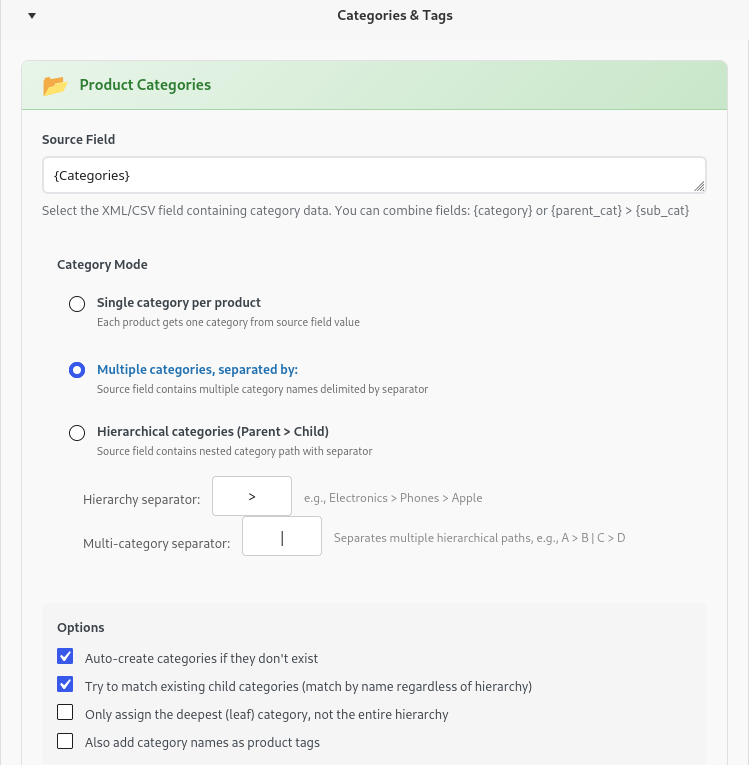
1. In Source Field, type { to see all available XML/CSV tags or drag a field from the right sidebar (works with any tag name in any language, e.g., {category_full}, {category}, {kategorija}, {g:product_type}).
2. Combine multiple tags if needed: If your supplier separates main and sub-categories into different tags, combine them directly in the Source Field:
{parent_cat} > {sub_cat}
Step 2: Choose Your Category Mode
Select how the plugin should interpret the category value from your feed:
1. Single category per product
Each product gets one category from the source field value.
Best when: Your feed has one category per product (Audio, Laptops), or when single category names contain commas (e.g., Auto, Sports & Travel).
2. Multiple categories, separated by:
Splits a single field into multiple categories using your custom delimiter (default ,).
Example: Electronics, Phones, Accessories → assigns the product to all 3 categories.
3. Hierarchical categories (Parent > Child)
Builds full parent-child category trees using a Hierarchy separator (e.g., > or /) and a Multi-category separator (e.g., |).
Example: Electronics > Phones > Apple | Deals > Weekly Sale
Step 3: Configure Category Options (Protect Your Store Structure)
Fine-tune how categories are matched and created:
☐ Auto-create categories if they don’t exist: Pro Tip: Uncheck this if you want to prevent unmapped supplier categories from ever creating new top-level categories in your store.
☑ Try to match existing child categories: Matches a flat feed category like Laptops to your existing Computers & Electronics > Laptops subcategory automatically.
☐ Only assign the deepest (leaf) category: Assigns the product only to the final subcategory (Smart Watch) rather than ticking every parent category above it.
☐ Also add category names as product tags: Automatically adds the product’s category names as WooCommerce product tags.
Step 4: Scan & Map Categories in the Visual Mapping Table
Tick Enable Category Mapping to open the mapping table:
1. Load All Supplier Categories from Your File
Click 🔄 Load All Categories from File. The plugin scans your XML/CSV file using the tag configured in Source Field and populates all unique categories found in the file—complete with product counts:
• Audio (3,445)
• Computers & Components (82,450)
• Pet Supplies / Zoo (4,741)
• Service (19,895)
• Smart Watches (2,004)
(You can also click + Add Mapping Row to add rows individually—the left column is a dropdown pre-loaded with all categories from your file, plus a ✏️ button to switch to manual text input anytime.)
2. Search & Pick Your WooCommerce Subcategories
Have 100+ categories in WooCommerce? Click any right-hand WooCommerce Category dropdown and start typing in the instant search bar (🔍 Search...):
• Type zoo → instantly filters to Auto, Sports & Travel > — Pet Supplies (ZOO)
• Type watch → instantly filters to Auto, Sports & Travel > — Watches > — — Smart Watch
• Type audio → instantly filters to Computers & Electronics > — Audio Equipment
(Search is completely case-insensitive and diacritic-insensitive, so typing without accents still matches accented category names.)
Step 5: Create Specific New Subcategories Under Any Parent (+ Create New → ↳ Parent)
What if your supplier feed includes a category that doesn’t exist in your store yet (for example, Senior Citizens (340) or Service (19,895)), and you want the importer to create it under one of your 4 main categories rather than at the top level?
1. In the right-hand dropdown next to Service (19,895), select + Create New.
2. A ↳ Parent: selector immediately appears right below it.
3. Search and select the parent category (e.g., Computers & Electronics), or leave — Top-level (no parent) — if you want it at root level.
Result:
• Even when Auto-create categories if they don’t exist is turned OFF, the importer honors your explicit + Create New rule.
• It creates Service as a subcategory under Computers & Electronics on the first product and assigns all 19,895 products to it automatically!
—
Real-World Mini Examples
Example 1: Mapping 27 Supplier Categories Under 4 Store Categories
Scenario: Your supplier feed (312,000 products) has 27 flat categories in <category_full>. Your store has 4 main categories and 110 subcategories.
Setup:
1. Source Field: {category_full}
2. Category Mode: Single category per product
3. Options: Uncheck Auto-create categories if they don't exist
4. Category Mapping:
– Click 🔄 Load All Categories from File (27)
– Use the right-hand search box to map 25 rows to existing subcategories
– Set the remaining 2 rows (Senior Citizens and Service) to + Create New with ↳ Parent: Computers & Electronics
Import Result:
✅ Zero unwanted top-level categories created
✅ All 312,000 products organized cleanly under your 4 main categories
Example 2: Converting Supplier Category Codes with a PHP Formula
Supplier XML sends: COMP_NOTE_GAMING
You want: Computers > Notebooks > Gaming
Setup:
1. Source Field: {category_code}
2. Process Category Value: PHP Formula
3. PHP Formula:
$dict = [
    'COMP' => 'Computers',
    'NOTE' => 'Notebooks',
    'GAMING' => 'Gaming',
];
$parts = explode('_', $value);
$mapped = array_map(fn($p) => $dict[$p] ?? ucfirst(strtolower($p)), $parts);
return implode(' > ', $mapped);
4. Category Mode: Hierarchical categories (Parent > Child) with separator >
Import Result:
✅ Raw codes are transformed into Computers > Notebooks > Gaming before category creation.
Example 3: Translating Foreign Supplier Categories with AI
Supplier XML sends (in German): Haustierbedarf > Hunde > Spielzeug
Your store is in English.
Setup:
1. Source Field: {kategorie}
2. Process Category Value: AI Processing (supports Gemini, OpenAI, Claude)
3. AI Prompt:
Translate this product category path from German to English. Keep the " > " separator and return only the translated path: {kategorie}4. Category Mode: Hierarchical categories (Parent > Child) with separator >
Import Result:
✅ Automatically translated and imported as Pet Supplies > Dogs > Toys.
Example 4: Multiple Categories per Product (Comma-Separated)
Supplier XML:
<categories>Leather, Jackets, Winter Collection</categories>Setup:
1. Source Field: {categories}
2. Category Mode: Multiple categories, separated by: ,
3. Category Mapping:
– Leather → Materials > — Leather
– Jackets → Clothing > — Jackets
– Winter Collection → Collections > — Winter
Import Result:
✅ Product is assigned to all 3 mapped WooCommerce subcategories simultaneously.
—
Pro Tips: Category Mapping Best Practices
Tip 1: Sort Priorities by Product Count
When you click 🔄 Load All Categories from File, each category displays its exact item count in parentheses—for example, Computers & Components (82,450) vs Clothing (135). Map your highest-volume categories first for immediate impact.
Tip 2: Use “Single Category” Mode If Names Contain Commas
If your supplier has a single category named Auto, Moto, Velo, using Multiple categories separated by , would split it into three categories (Auto, Moto, and Velo). Switching to Single category per product (or mapping the full string in the Category Mapping table, which checks full-string matches before splitting) keeps it intact.
Tip 3: Protect Manual Edits on Re-Import
If you manually adjust product categories in WooCommerce after import, uncheck Update categories on re-import? at the bottom of the Product Categories section so scheduled price/stock updates leave your manual category assignments untouched.
—
Next Steps
Want to test intelligent category mapping on your own feed?
1. Try Bootflow Product Importer Free forever WordPress plugin link
2. Upload your XML or CSV feed (or paste your feed URL)
3. Select your category tag and click 🔄 Load All Categories from File
4. Map your categories in minutes with instant search and parent control
OR try Bootflow – Product XML & CSV Importer PRO DEMO here
After demo you can get PRO here
—
FAQ
Q: Can the file scanner handle huge XML files (100MB+ / 300,000+ products)?
A: Yes! The category scanner uses fast chunked streaming and processes a 150MB XML file with 312,000+ products in ~0.5 seconds without running out of PHP memory.
Q: What if my supplier XML uses a custom tag name in another language?
A: The scanner reads whatever tag or template you enter in Source Field—whether it’s {category_full}, {kategorija}, {rubrika}, or {main_cat} > {sub_cat}.
Q: If I uncheck “Auto-create categories if they don’t exist”, will + Create New still work?
A: Yes! Unchecking Auto-create categories blocks unmapped categories from being created, while any row explicitly set to + Create New in the mapping table will still be created (at top-level or under your selected ↳ Parent: category).
Q: Does the searchable mapping table also work for Product Tags and Brands?
A: Yes! Both Product Tags and Product Brands include their own mapping tables with the same searchable WooCommerce dropdown.
Q: What if I want to remove old categories after import?
A: Re-running the import with Update categories on re-import? checked will move products to their newly mapped categories. You can then delete any empty leftover categories in Products → Categories.
—
Tags: WooCommerce category mapping, bulk category assignment, XML import categories, product hierarchy automation, supplier category matching
Related Articles:
https://bootflow.io/how-woocommerce-prices-import-markup-vat-rounding/
https://bootflow.io/how-to-sync-woocommerce-stock-levels/
https://bootflow.io/how-to-automatically-assign-shipping-classes-when-importing-products-in-woocommerce/